Connect Claude to Sanna MCP
for your operating company
What you can do
Answer your accountant
Read the questions your accountant has for you, and answer them.
Ask a question
Ask a question to Sanna without leaving Claude.
Send receipts and files
Attach a receipt or another file in Claude and send it to Sanna.
Register expenses
Let Claude register expenses in Sanna for you.
Connect Claude
Add Sanna as a custom connector in Claude in the browser or the desktop app, then log in to Sanna and choose what Claude may do.
Open Claude
Open Claude in the browser or in the desktop app.
Add a custom connector
Go to Settings → Customize → Connectors, click Add, then Add custom connector.
Fill in the connector details
Fill in the two fields below, then click Continue.
- Name
- sanna-driftsselskapet
- URL
- https://opco.sanna.co/api/mcp
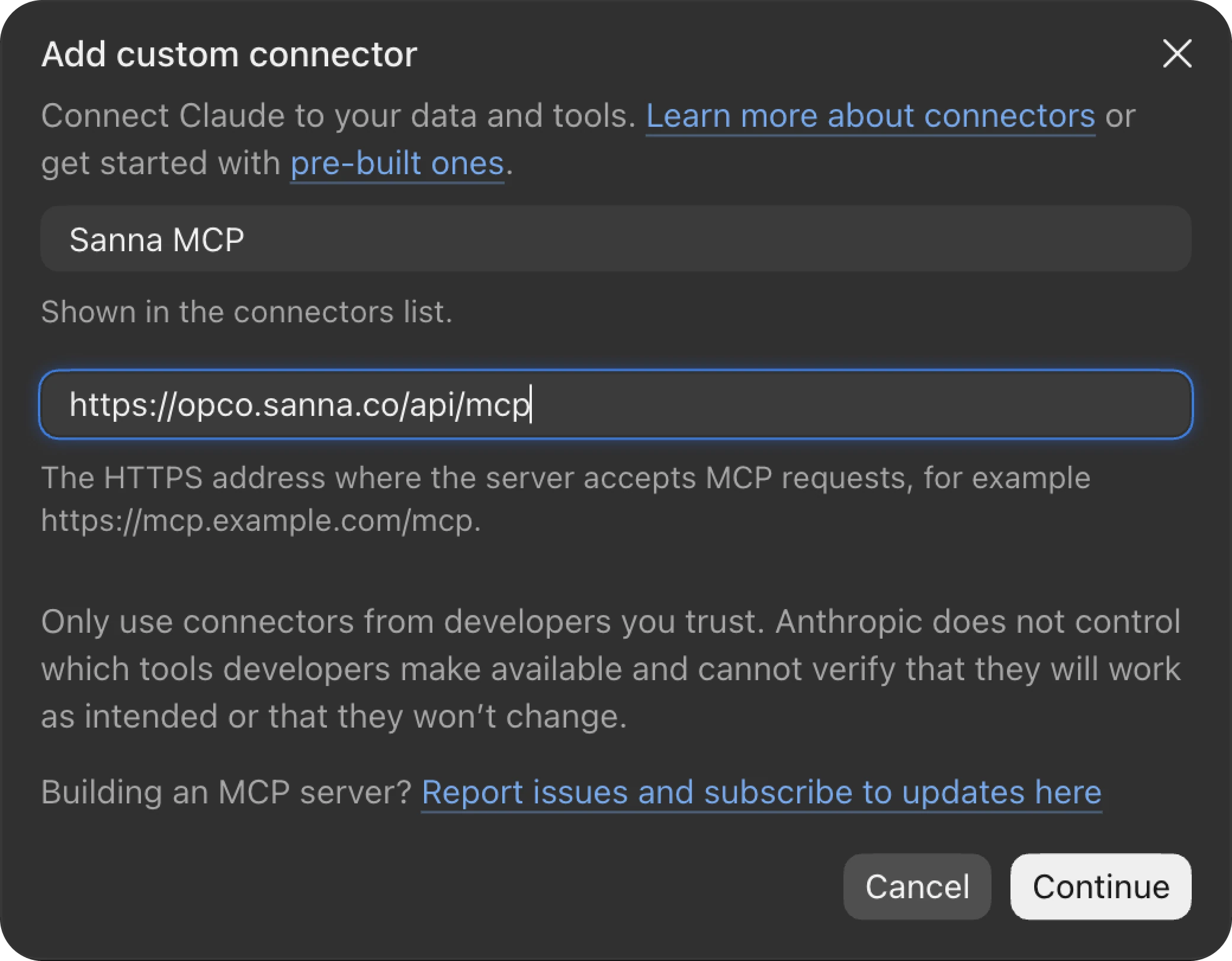
The Add custom connector dialog in Claude. Keep the detected settings
Keep the values that Claude detected: Sign in now under Authentication, and Use Claude's published identity under OAuth client. Do not add a header. Click Add.
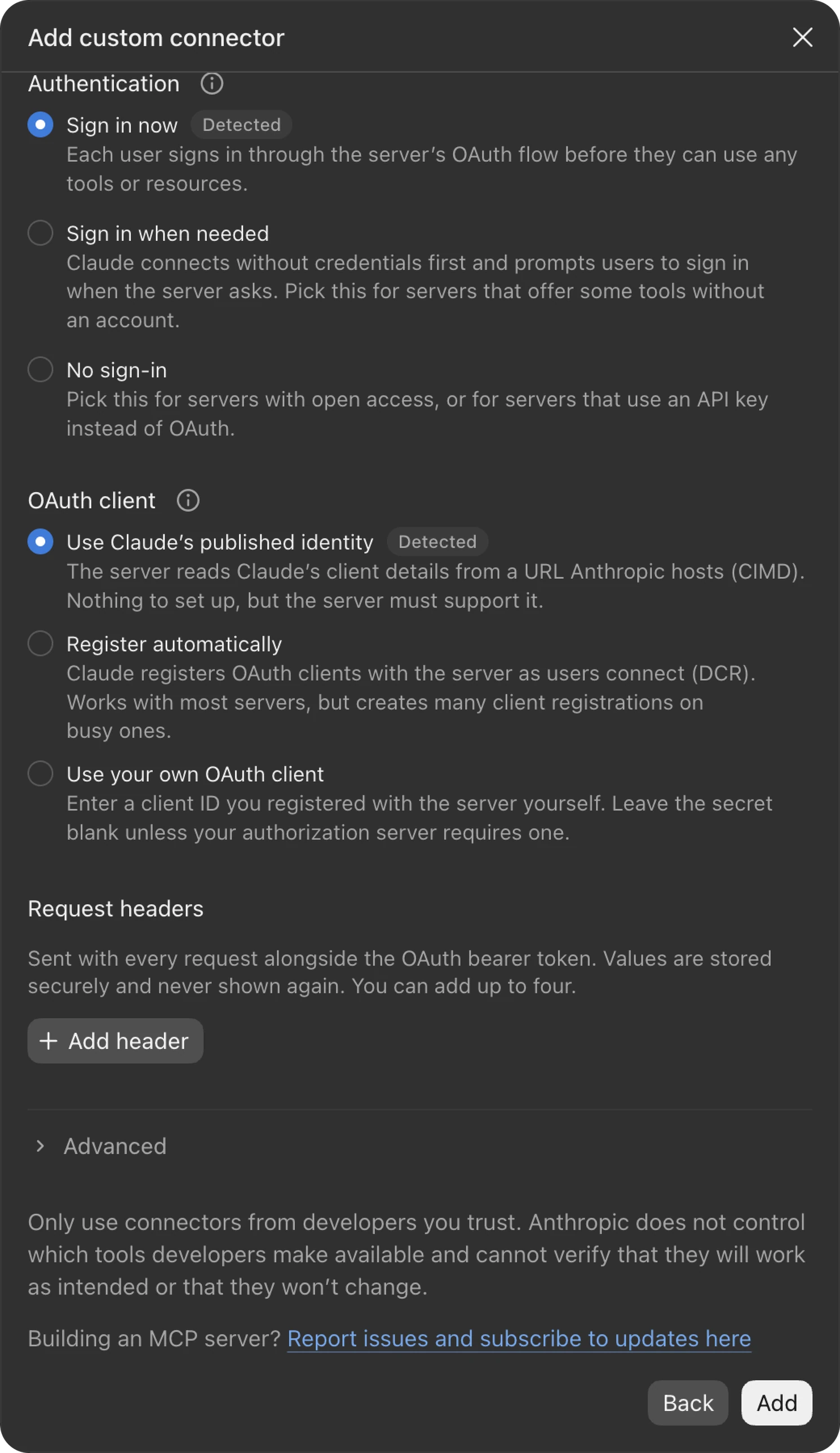
Leave both detected options selected and add no headers. Connect
Click Connect on the new sanna-driftsselskapet connector. Sanna opens in the browser.
Log in to Sanna
Log in to Sanna with the email address that has access to your company.
Check who is asking
On the page Koble Claude til Sanna? (Connect Claude to Sanna?), check that the line under the title names claude.ai.
Choose the access
The page opens with every access ticked, because Claude asks for all of them. Choose the access:
Read and write
To let Claude answer your accountant, ask a question, send files and register expenses for you, keep all the ticks and click Godkjenn 10 tilganger (Approve 10 accesses).
Read only
To let Claude only read, click Bare lese (Read only), then Godkjenn lesetilgang (Approve read access).
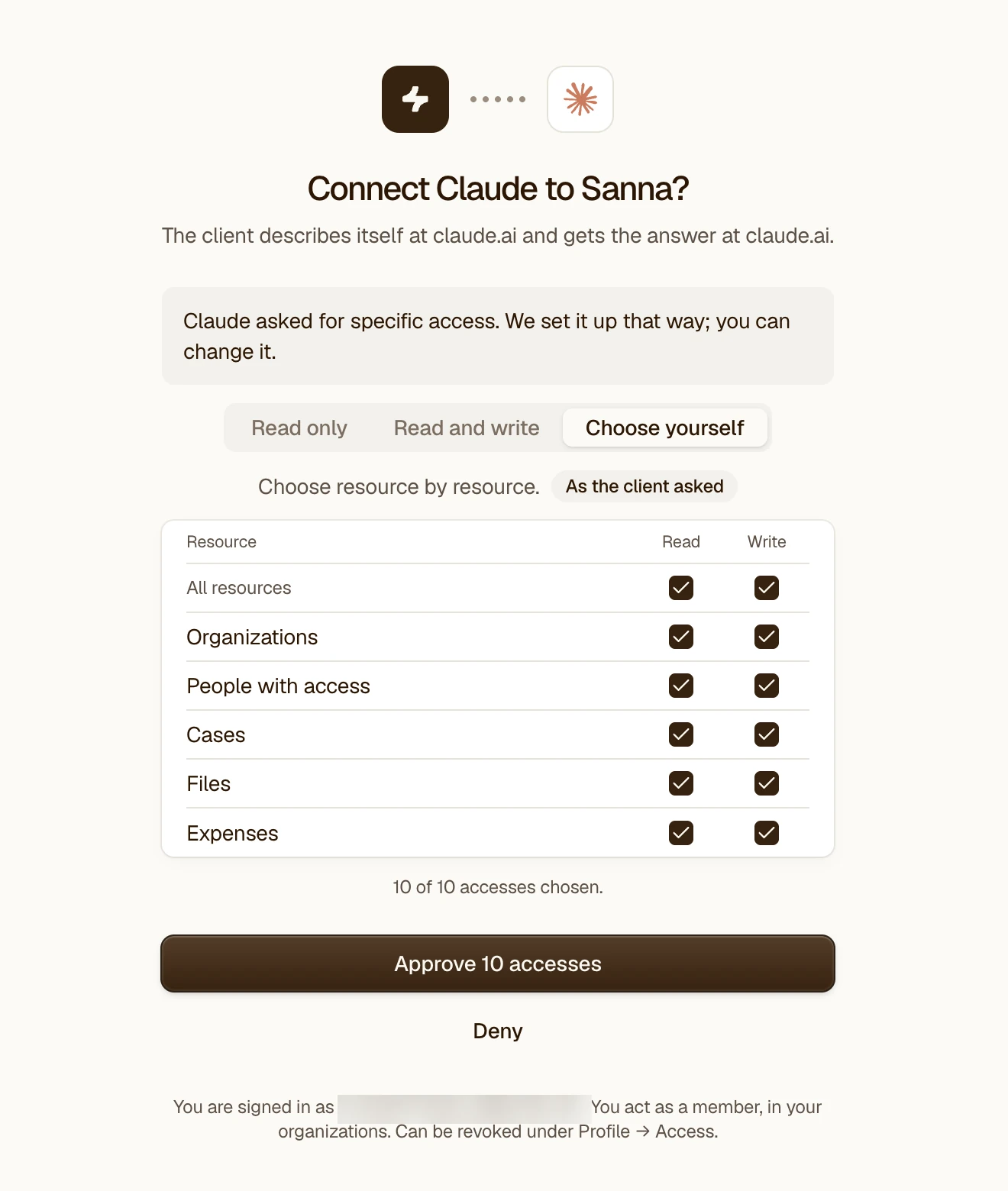
Sanna's consent page, shown here in English. Try it
Back in Claude, try one of the examples.
Add Sanna to Claude Code with one command in the terminal, then sign in to Sanna from Claude Code.
Already added Sanna in the Claude app? If you log in to Claude Code with the same Claude account, it's already there: it shows as claude.ai sanna-driftsselskapet in /mcp.
Add Sanna to Claude Code
Run this command in the terminal.
--scope usermakes Sanna available in all your projects.claude mcp add --transport http --scope user sanna-driftsselskapet https://opco.sanna.co/api/mcpSign in
Start Claude Code with
claude, type/mcp, choose sanna-driftsselskapet, then Authenticate. Sanna opens in the browser.Log in to Sanna
Log in to Sanna with the email address that has access to your company.
Check who is asking
On Sanna's consent page, check that the line under the title names claude.ai.
Choose the access
The page opens with every access ticked, because Claude Code asks for all of them. Choose the access:
Read and write
To let Claude Code answer your accountant, ask a question, send files and register expenses for you, keep all the ticks and click Godkjenn 10 tilganger (Approve 10 accesses).
Read only
To let Claude Code only read, click Bare lese (Read only), then Godkjenn lesetilgang (Approve read access).
Try it
Back in Claude Code,
/mcpshows sanna-driftsselskapet as connected. Try one of the examples.
Access and permissions
Claude asks for read and write access to five kinds of resources in Sanna — 10 accesses in all. You decide what to approve on the consent page.
| Resource | Read | Write |
|---|---|---|
| Organizations | Read | Write |
| People with access | Read | Write |
| Cases | Read | Write |
| Files | Read | Write |
| Expenses | Read | Write |
Read and write
Claude can answer your accountant, ask a question, send files and register expenses for you.
Read only
Claude can only read.
The consent page also lets you choose resource by resource. You act as a member, in your organizations.
Example prompts
Once connected, try for example:
“Does my accountant have any questions for me?”
Attach a receipt first.
“Send this receipt to Sanna”
If something goes wrong
Known problems and what to do about them.
Your Claude account belongs to a company plan, and only the owner of that plan can add a connector. Ask the owner to add it with the values in step 3.
Remove the access
In Sanna, go to Profil → Tilgang (Profile → Access) and click Trekk tilbake (Revoke) on Claude. Claude loses the access at once. To take Sanna out of Claude as well, remove the connector under Settings → Customize → Connectors, or run claude mcp remove sanna-driftsselskapet for Claude Code.